
How to Make Cat Clapping Meme Videos With Your Own Photos
How to make cat clapping meme videos from person and pet photos: choose references, check credits, generate a vertical clip, review it, and download MP4.
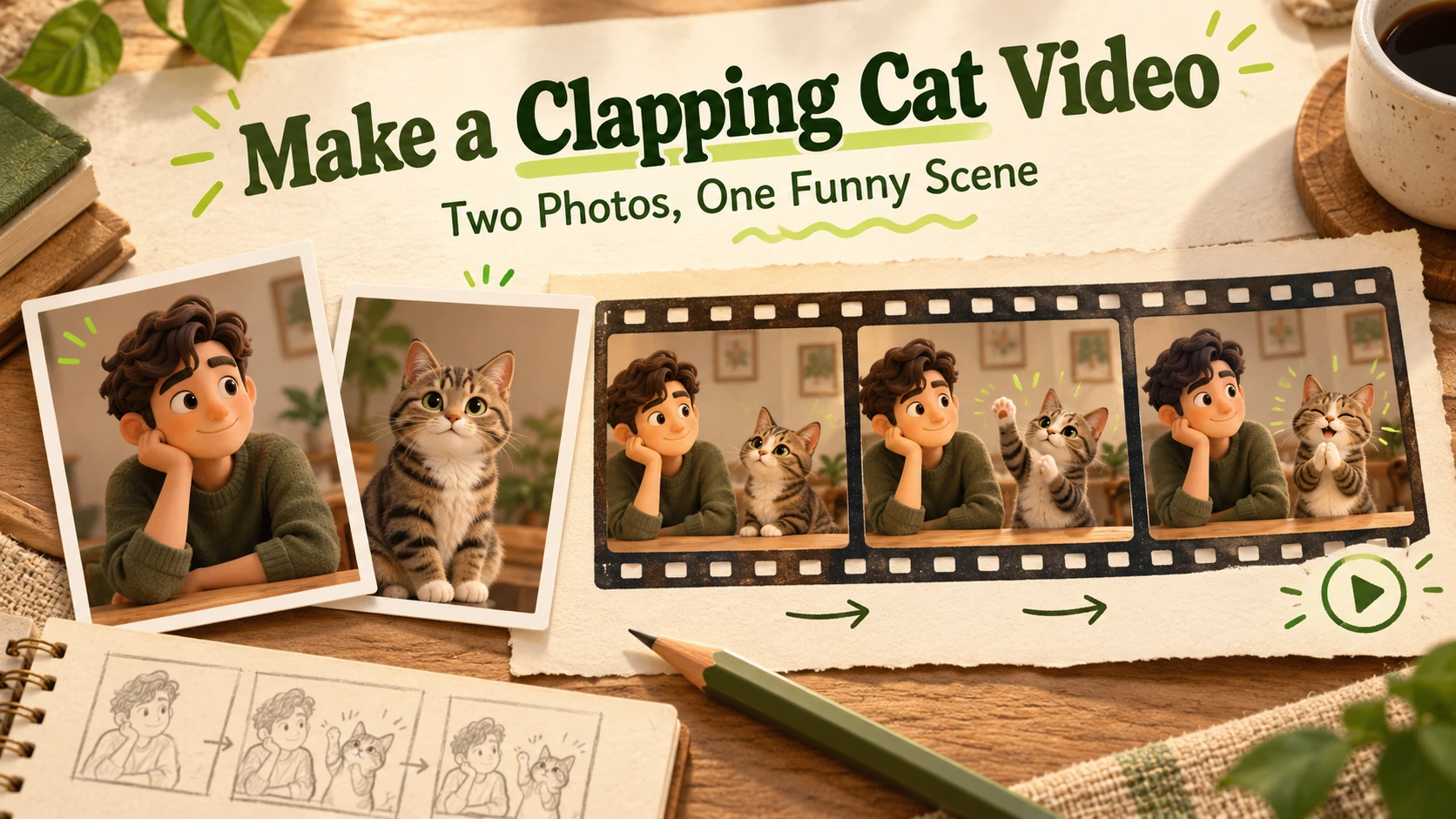
Start with the scene you want to share
Learning how to make cat clapping meme videos starts with two separate photos: one person and one pet. On Cat Clapping, you choose those appearance references, select an available resolution, and submit a request for a prepared AI comedy scene. You then review the completed video before downloading it. You don't need to write scene instructions or record your cat performing any gestures.
This tutorial explains the current photo workflow, including the checks that matter before spending credits. It describes the configured effect and its controls, rather than claiming that a particular set of photos has been tested. Generated faces, paws, movement, and timing can vary. Think of the result as an imagined interaction featuring your chosen subjects.
If you're still deciding what the format means, read the cat clapping meme explainer. If you're ready to work with photos, open the Cat Clapping generator and keep this guide nearby.
Understand the prepared effect
Before exploring how to make cat clapping meme clips, separate the scene's goal from the result you receive. The preset targets one ten-second, vertical 9:16 video. It begins with a brief offered-paw teaser, then moves into a person quietly feeding the pet. The person gives a secrecy gesture; the pet claps, covers its mouth, offers a short salute, and extends a paw for a handshake. The closing human reaction completes the joke.
These are instructions for generation, not a promise that every beat will appear in that order or remain anatomically convincing. The intended style resembles ordinary home footage, with cuts between the person and pet. Review the actual output for the story you can see, rather than assuming the preset's wording describes what happened on screen.
The current controls offer resolution selection, with 480p and 720p described on the homepage. Duration and orientation stay fixed. There isn't a scene timeline, a custom prompt box, or separate gesture controls. Your main creative choices are the reference subjects and how you use the finished clip.
CreatorSet’s black cat template describes an AI-generated cat clapping, covering its mouth, and offering a handshake. That listing is a green-screen asset; this tutorial instead creates a new photo-guided scene. An existing template does not establish what your request will produce.
Step 1: Preview the examples and choose your page
A useful first step in how to make cat clapping meme videos is watching the available reference clips. Notice how much of the humor depends on the person's reaction, the pet's expression, and the cuts between them. Look for readable paw contact rather than simply raised paws. These examples help explain the intended effect; they don't predict how your own photos will turn out.
You can begin on the homepage or visit the focused AI cat clapping tool. The cat clapping meme page gives another entry point with its own examples and history. Choose one page for a comparison session so you can return to the relevant requests more easily.
For a dark-coated subject, the black cat page provides focused photo guidance. A black cat isn't required for this workflow. Pick the subject you actually have permission to use, rather than searching for a lookalike of an existing online clip.
Step 2: Prepare a clear person photo
The practical answer to how to make cat clapping meme videos depends more on usable references than on elaborate preparation. Choose a single person with an unobstructed face. Even lighting, visible hair, and a straightforward angle make it easier to identify the intended appearance. Avoid sunglasses, a hand across the mouth, heavy filters, or a group portrait with competing faces.
Use your own image or one you have permission to process with AI. Make sure the pictured person is comfortable with the fictional scene and its eventual caption. A casual joke can become uncomfortable when it implies a real reaction or agreement that the person never gave.
Inspect the photo at thumbnail size. If the face is hard to distinguish there, choose a clearer original. Don't crop tightly through the hairline or chin. Leave enough context to show the subject cleanly, while keeping unrelated people out of the frame. Higher output resolution cannot recover facial detail that the input never contained.
Step 3: Prepare a separate pet photo
For the pet reference, use a single animal with its full body visible. Include the ears, tail, and front paws, with room around the outline. A relaxed sitting or standing pose is suitable; you don't need to encourage a real animal to clap, salute, or stand in an unnatural position.
When considering how to make cat clapping meme results more readable, start by checking the paws in the original. Blankets, furniture, motion blur, and dense shadows can hide useful information. For a black cat, soft light and a background that separates from the coat help show the body outline. Preserve the actual fur color rather than brightening until the texture disappears.
Use separate files for the person and pet. A collage or a photo containing both subjects makes the role assignment less clear. The homepage describes PNG, JPEG, and WebP references up to 10 MB each; also check the limits displayed by the uploader. Renaming a file extension doesn't convert its contents.
Step 4: Sign in, select your references, and check credits
The next part of how to make cat clapping meme videos happens in the generator. You can inspect the public page before signing in. When a guest tries to select references or generate, the interface opens sign-in. Complete that process before expecting an upload to become a usable reference.
Follow the slot labels and confirm the previews:
- Open Person photo · Clear face and upload or select the person image.
- Open Pet photo · Full body and choose the separate animal image.
- Check both thumbnails and filenames. Replace an image if the roles are reversed.
- Wait for reference checking to finish before submitting the request.
- Choose the available resolution and review the displayed credit estimate.
The two-photo approach matches the intended person-and-pet scene. The underlying tool accepts one or two references, but a single image does not supply the same clear pair of roles. For this tutorial, prepare both rather than expecting the system to infer a missing subject.
Learning how to make cat clapping meme videos also means checking the cost of each attempt. The estimate depends on the available settings and current catalog. Review your balance before generation; don't assume the request is free or that an earlier price remains current. If the form reports unavailable pricing or a reference problem, resolve the visible message first.
Step 5: Generate once and follow the request
With the references ready and the estimate reviewed, select Generate. The request produces one video under the current tool configuration. Ten seconds describes the target clip length; it doesn't describe how long processing takes. Wait for the task's actual status instead of expecting a fixed completion time.
A common mistake when learning how to make cat clapping meme clips is submitting again because a response seems slow. Check history first. If the interface says submission status is uncertain, use Check this submission to check the existing request. If a paused status offers Retry status, use that control to resume checking rather than assuming you need another generation.
Keep the page and request context clear while you wait. Changing a photo or resolution and submitting again creates a separate attempt. A second request isn't a revision to the first output, so review its credit estimate as another decision. If an error persists, keep the visible message for support rather than repeatedly clicking the action button.
Step 6: Review the complete video in history
Once a viewable output appears, open it from the page's generation history. The preview provides video controls and details such as aspect ratio, resolution, and duration when available. Watch the full sequence, then replay the transitions that matter most to your joke.
The review stage is essential to how to make cat clapping meme videos worth sharing. Check the person's face across cuts, the pet's coat markings, and the number and shape of visible limbs. Inspect whether paws meet distinctly during applause or simply wave. Look for a hand or paw blending into the food, mouth, table, or frame edge.
Then assess the ending. Does the offered paw read as a handshake? Is the person's response understandable? A technically playable file can still contain confusing motion. Don't describe a missing action in a caption as if it appears clearly. If only part of the scene works, consider whether an external trim would leave a coherent reaction without implying a different event.
Improve one thing on your next attempt
A controlled retry is a practical part of how to make cat clapping meme videos. Identify the most visible problem before changing anything. If the pet's paws are unclear, try a less obstructed pet photo while retaining the person image and resolution. If the face drifts, compare a clearer portrait instead.
Changing every input at once makes it difficult to understand the difference. Keep a short note about what you changed and what you observed in each completed output. Treat a better result as a useful comparison for those references, without assuming the same change guarantees an improvement for every image.
Resolution is a separate choice from motion quality. More pixels don't guarantee correct anatomy, a better handshake, or exact likeness. Review the new estimate before each attempt, and stop when another request isn't justified by your needs or budget. You don't need a flawless sequence to learn which references are clearer, but you do need a result you're comfortable sharing.
Download the MP4 and plan the caption
After reviewing the output, use Download current video in the preview. The current workflow supports MP4 video downloads. Open the saved file on your device to confirm that you kept the intended version and that it plays correctly before sending it to someone else.
Finishing how to make cat clapping meme content includes choosing a caption that fits the visible reaction. A small, specific moment usually gives the applause context: finally finding the treats, finishing an awkward task, or celebrating a modest personal win. Add text in a separate editor or the destination app; the generator doesn't provide a caption editor for this fixed scene.
Keep any caption away from faces and paws, and check the posting preview for cropping. Describe the clip as AI-generated when sharing it so viewers understand that the pictured person and pet didn't actually perform the scene. If you need a looping reaction image instead, follow the separate video-to-GIF guide. Conversion is a later step, not a native GIF output option in this generator.
Once you understand how to make cat clapping meme videos, save the references that were easiest to review and keep your favorite finished file. For another idea, return to the examples with a specific reaction in mind, then decide whether a new request is useful before committing more credits.
Keep exploring
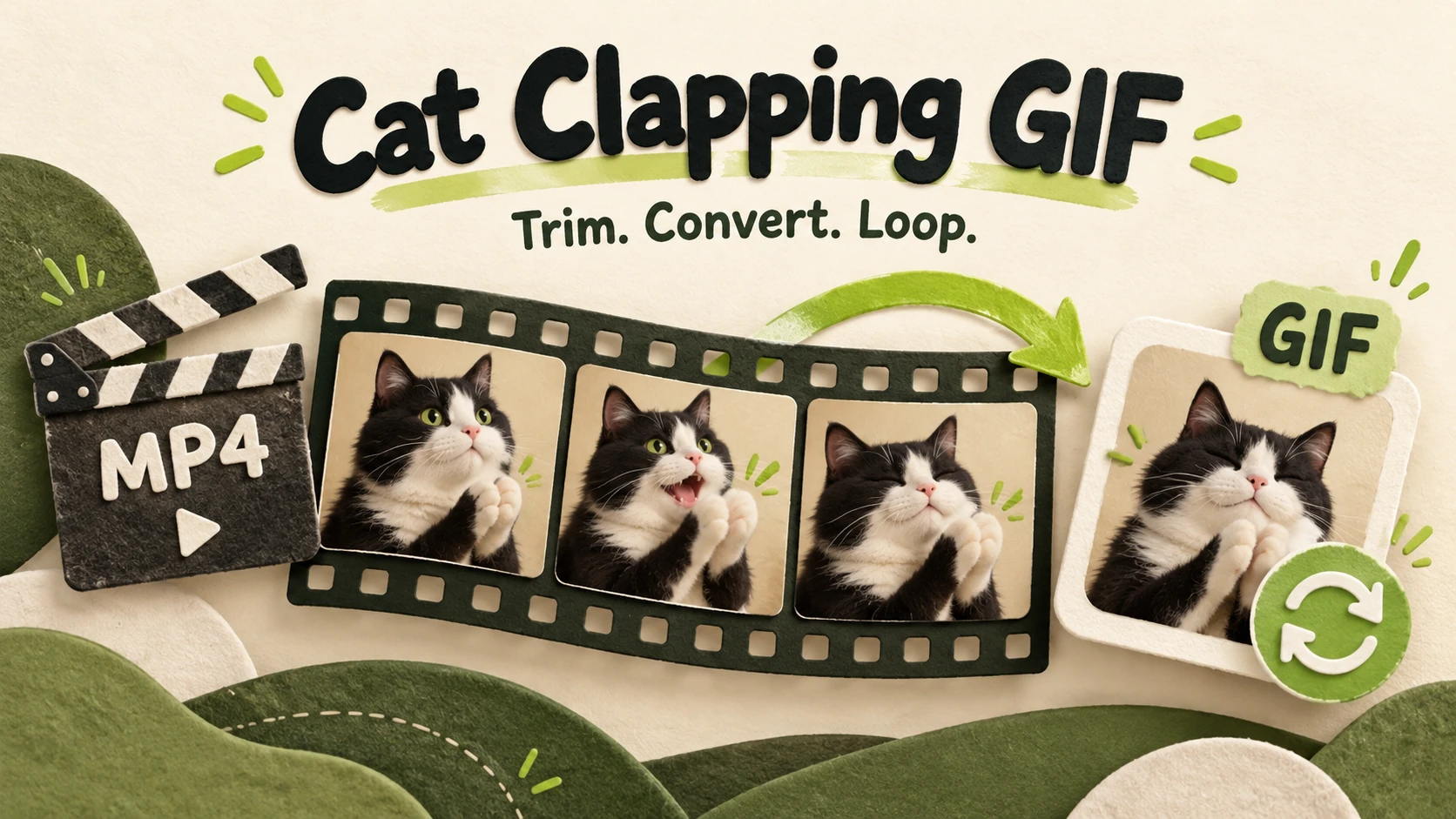 Tutorials
Cat clapping GIF guide: trim your own video, convert it with Ezgif, improve the loop, and check size, color, and playback before sharing the finished file.
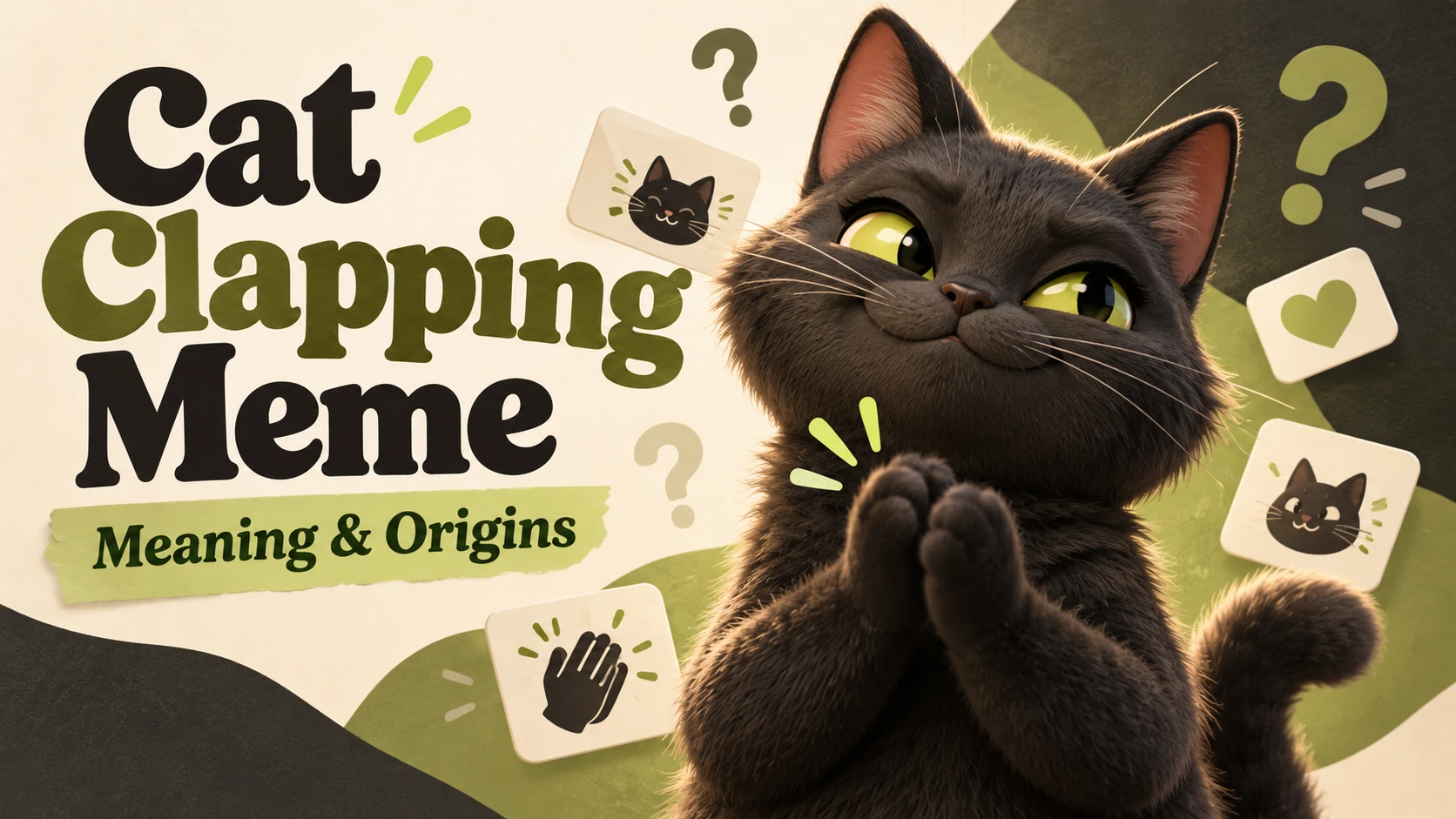 Meme Guides
Cat Clapping Meme explained: understand the smiling black cat, documented origins, AI gestures, reaction captions, and how it differs from Larry and new remakes.