
Cat Clapping GIF: Turn Your Video Into a Shareable Loop
Cat clapping GIF guide: trim your own video, convert it with Ezgif, improve the loop, and check size, color, and playback before sharing the finished file.
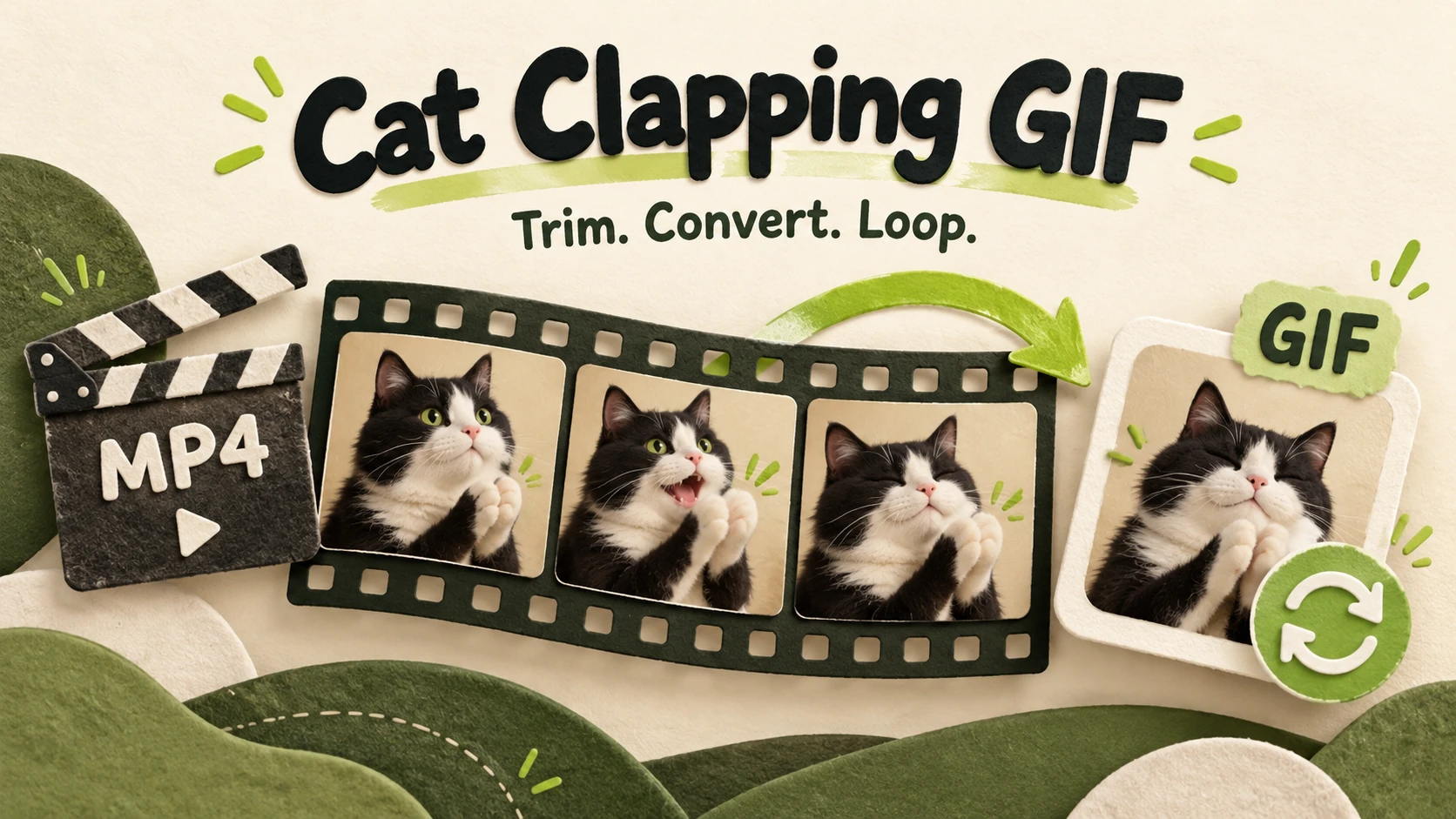
Start with a video you already own
A cat clapping GIF begins with a short video in which the gesture is easy to read. Download a video you made or have permission to edit, find the moment when the paws and hands move together, and convert just that moment. Cat Clapping currently produces video; it does not include a native GIF converter. The separate conversion workflow below uses Ezgif's video-to-GIF tool. You can keep the original MP4 and decide later which format fits the place where you want to share it.
If you still need a source clip, the AI Cat Clapping tool is a place to make a video before starting this guide. For a reaction with a more recognizable meme setup, explore the Cat Clapping Meme tool. This article assumes you have saved the finished video to your device. It does not imply that either tool exports GIF files.
The goal for a cat clapping GIF is a compact, legible loop, not the whole video squeezed into an animated image. A viewer should see the setup, clap, and return. Keep both pet and person in frame throughout the chosen segment.
Choose the clapping moment before converting
Watch your source video once without editing. Mark the first frame where the cat's paws or the person's hands begin moving toward the clap. Then mark a point after the gesture resolves. A good cat clapping GIF often includes a little anticipation and follow-through; cutting precisely at the contact frame can make the action hard to understand. The ideal duration depends on the motion in your own clip, so treat any suggested number as a starting point rather than a requirement.
Look for a stable beginning and ending pose. When the last frame jumps back to the first, a change in paw position, camera angle, or expression can reveal the seam. You may find a better cat clapping GIF by trimming one or two beats before the clap and ending after the hands settle. If the camera moves continuously, favor a complete action over an awkward cut made only to force symmetry.
For a black cat, pause on the darkest frames. Check whether you can distinguish both paws from the chest and background. A cat clapping GIF has fewer available colors than its source video, so dark fur can merge into one shape. Visible edges and contrast give you more room to reduce size later. A higher GIF frame rate cannot restore motion detail already blurred in the video.
Before uploading, check that the file is yours or that your permission covers editing and sharing it. An online converter receives the file you submit. If the source contains details you do not want to send to that service, use a local editing workflow.
Convert a cat clapping GIF with Ezgif
Ezgif's video-to-GIF page accepts an uploaded video and provides start and end time, size, frame rate, and loop controls. Its official guide describes the conversion in the same sequence. The page can change, so follow the labels you see if the layout differs.
- Open the video-to-GIF page and use the file chooser under Upload video to select your saved MP4. The page also offers drag and drop and a direct video URL, but choosing a local file is the clearest path when the video is already on your device. Continue with the page's upload control to reach the editing options.
- Play the uploaded clip. Enter Start time (seconds) and End time (seconds) around the entire gesture. Ezgif also describes a Use current video position control for setting a precise point while the video is paused. Verify both boundaries by watching the selected moment again.
- Choose a Size and Frame rate (FPS). For an initial cat clapping GIF export, a width around 320–480 pixels and roughly 10–15 FPS are reasonable experiments, especially for a short reaction. These are editing starting points, not guaranteed limits or quality settings for another platform. If the paw movement looks choppy, test a higher frame rate; if the file is unwieldy, shorten the segment or reduce width first.
- Set the Loop count if you need a particular repeat behavior. Ezgif describes zero as continuous looping. Choose the conversion method shown on the page, then use Convert to GIF!, the action named in its official guide.
- Inspect the Output GIF animation preview. Confirm that the clap is visible, the return to the start is acceptable, and the edges of the cat remain clear. Use the Save action beneath the output when the result is ready.
Ezgif's page currently states a 200 MB maximum upload size and explains that allowed conversion duration depends on frame rate. Check the live tool because service limits may change. If your first cat clapping GIF is too long or large, trim closer to the action. Keep the original MP4 so you can try another cut without degrading an existing GIF.
Make the cat clapping GIF loop feel intentional
A cat clapping GIF gets watched more than once, even when the viewer does not notice the repeat. Replay it several times without looking away at the seam. Ask whether the clap has a beginning, whether it finishes, and whether the restart confuses the action. If the last frame shows hands far apart while the first shows them together, adjust a boundary. Small trim changes often matter more than adding frames.
Use timing to make your cat clapping GIF land. Let the setup breathe if the cat's expression carries the reaction, but avoid a long still section before the clap. Too few frames can make the paws seem to teleport. Compare two frame rates at actual display size. The smoother version helps only if its file remains practical for the destination.
Avoid assuming that a GIF will preserve every detail of the MP4. Ezgif's optimizer notes that each GIF frame can use up to 256 colors. This is especially relevant to black fur, shadows, gradients, and subtle facial expression. If the cat becomes a flat silhouette, return to the source and choose a brighter section if available, or keep more colors during optimization. Increasing dimensions after conversion cannot bring back detail that was never present.
The file's ending matters just as much as its opening. A cat clapping GIF with a clean gesture and a small seam can still work well as a reaction. A file that cuts off before the paw reaches the hand feels unfinished even when the seam is technically smooth. Let the meaning of the motion guide the edit.
Resize and optimize without losing the cat
If your cat clapping GIF is too large, open Resize beneath the output or use Ezgif's resize tool. Enter a smaller width and keep the aspect ratio so the pet does not look stretched. The resize page explains that smaller dimensions can reduce file size, while enlarging can blur or pixelate the image. A narrower vertical GIF can still read well if the paws and face remain prominent. Compare at the size people will see.
Next, try Optimize beneath the output or the GIF optimizer. It offers lossy compression, color reduction, and frame removal. Make one change at a time and compare results. A lower color count may save space but flatten dark fur. Removing frames can make the clap less smooth. Stronger compression may add noise around paws or whiskers. The best cat clapping GIF uses the lightest change that solves your file-size problem.
For a cat clapping GIF featuring a black cat, inspect the darkest moment after every optimization pass. If you can no longer identify the moving paw, reverse the last change. If the entire cat remains clear but the image is still too large, try a shorter duration or a modestly smaller width. Ezgif specifically points to resizing, cropping, shorter duration, and optimizer controls as ways to reduce GIF size. It does not promise one compression result for every clip, and neither can this guide.
Save your final cat clapping GIF with a useful filename, then open it outside the editor. Confirm it animates and that you downloaded the intended version. Keep the MP4 and one higher-quality GIF until you test the destination.
Decide whether GIF or MP4 fits the share
A cat clapping GIF can be convenient when you need a short, silent visual reaction that loops in a place accepting animated images. It is a poor replacement for a video when sound, detailed color, or a longer scene carries the joke. Ezgif's sound explanation is explicit that GIF files have no audio track. If the timing depends on music, a spoken line, or the sound of a clap, keep the MP4.
The format also changes how you judge quality. MP4 is often more efficient for photographic motion, while GIF stores an indexed-color animation and can become large even for a short sequence. A converted cat clapping GIF may therefore be bigger than you expect from the video file. Compare actual saved files rather than assuming that fewer seconds means a smaller download. When in doubt, share the MP4 where a video upload is supported and use the GIF where its image-style loop adds value.
Before posting, upload a test or preview to the intended app or site. Some destinations preserve animated GIFs, while others show a still preview, recompress them, or treat the upload as video. That behavior depends on the destination and may change. Check the actual posted view on a device similar to your audience's. Verify that the opening frame makes sense if it appears as a thumbnail, and that captions or interface controls do not cover the paws.
If your joke is a meeting between two characters rather than a solo applause reaction, the Cat Handshake Meme tool offers another video starting point. The same trim, convert, inspect, and share checks apply. For ideas about the meaning and variations of the reaction, read what the Cat Clapping meme is; for source-video planning, see how to make a Cat Clapping meme.
Check your cat clapping GIF before sharing
Play the saved cat clapping GIF in a normal image viewer and watch at least two loops. Check that the complete clap reads at a glance, the black fur retains enough shape, and the restart does not distract from the reaction. Compare it with your MP4 if the action looks weak. A cleaner cut from the original video often helps more than another aggressive compression pass.
Keep the GIF when its silent repeat delivers the moment quickly. Keep the MP4 when audio, rich detail, or a full scene matters. The conversion is a separate step after video creation, so preserve your source and treat each GIF export as an editable choice. That makes it easy to try a tighter start, a different frame rate, or a smaller width for a specific place you plan to share.
Keep exploring
 Tutorials
How to make cat clapping meme videos from person and pet photos: choose references, check credits, generate a vertical clip, review it, and download MP4.
 Meme Guides
Cat Clapping Meme explained: understand the smiling black cat, documented origins, AI gestures, reaction captions, and how it differs from Larry and new remakes.